Most people don’t realize their phone is being monitored because spyware and phone-tapping tools are built to stay hidden. Without any obvious alerts, your phone could be transmitting calls, messages, and location data. But, if you know what to look for, there are red flags that point to unauthorized access, and practical checks you can run to keep your phone spyware free.
What you need to know:
- Common signs of a tapped phone include rapid battery drain, unexpected data spikes, and the camera or microphone activating without a clear reason.
- Spyware is most often installed through phishing links, malicious apps, or brief physical access to an unlocked device.
- Android devices are more frequently targeted by stalkerware than iPhones, although neither platform is completely immune.
- You can check for phone monitoring by reviewing installed apps, app permissions, call-forwarding settings, and mobile data usage.
- Remove spyware by uninstalling suspicious apps and running a security scan; a factory reset may be necessary in some cases.
- To reduce the risk of tapping, keep your operating system updated, use strong authentication, and only download apps from official stores.
How to tell if your phone is tapped or hacked?
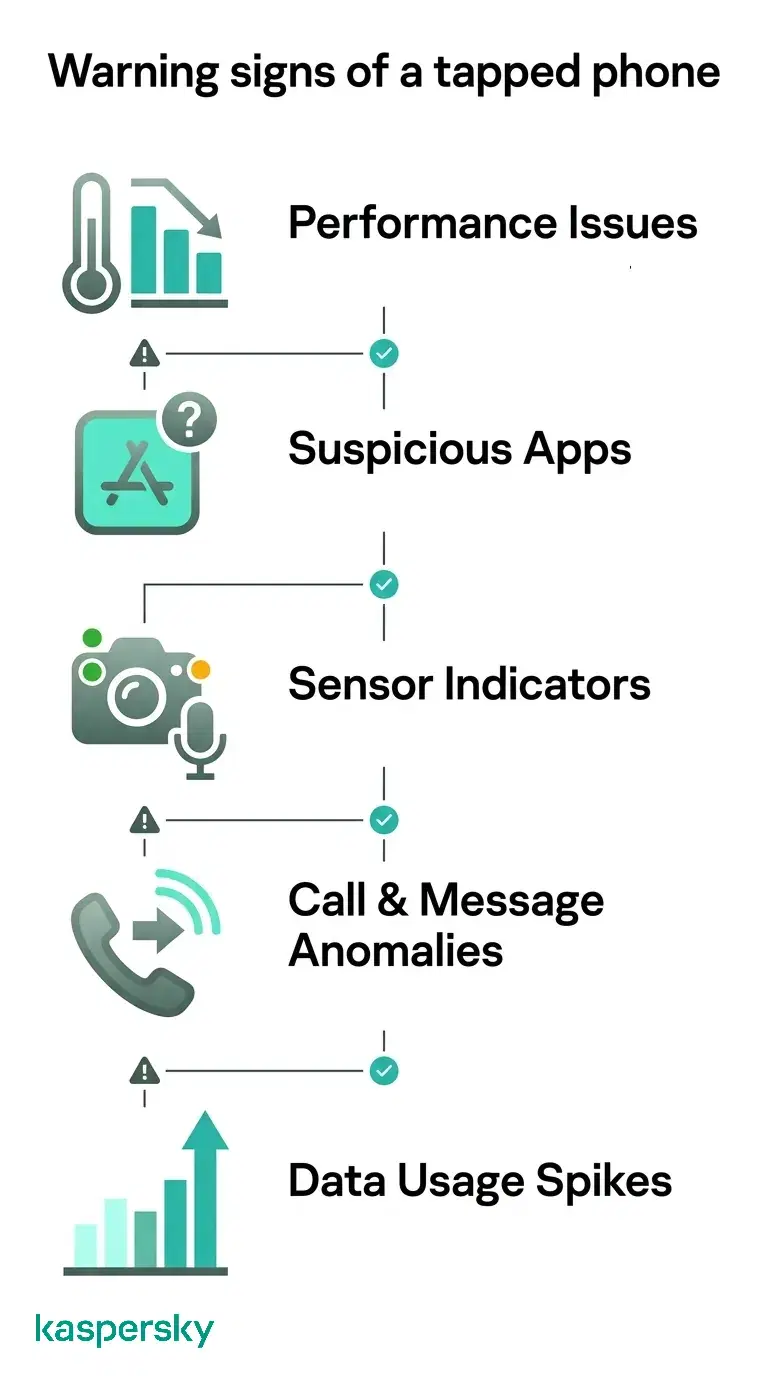
A tapped or monitored phone rarely shows one clear warning sign. Instead, several unusual symptoms may appear across performance, apps, sensors, calls, or mobile data usage. When multiple signs occur together, they can indicate monitoring software is present.
Performance issues that may indicate spyware
A phone running spyware is working harder than it should be. Watch for your battery draining faster than usual, running warm even when you’re not using it, or apps that have slowed down or crash unexpectedly.
Random restarts and slow shutdowns are also something to keep an eye out for as some monitoring applications prevent the device from powering off until they finish transmitting data.
Suspicious app activity
Check your full app list for anything you don’t recognize. Spyware often uses generic names to appear like legitimate system utilities. Look for apps with generic names like “System Manager,” “Phone Health,” or “Device Service.”
On Android: go to Settings > Security > Device Admin Apps. The monitoring software may be registered as a device administrator to make it harder to identify and remove.
Apps requesting permissions that don’t match their function are another signal. A calculator app asking for microphone access, or a flashlight app requesting your location, has no reason for needing those permissions.
Camera, microphone, and location indicators
Modern smartphones show an indicator when the camera or microphone is in use. On iPhone, a green dot appears for the camera and an orange dot for the microphone. Android 12 and later display similar indicators at the top of the screen. If either appears while you’re not actively using an app that needs access to them, there is something else accessing those sensors.
Both platforms now offer privacy dashboards that log sensor access. Review that log to see which apps have been activating your camera, microphone, or location, and how often. Also watch for GPS activity when location services should be off.
Unexpected call or messaging behavior
Call forwarding without your knowledge is a direct sign of phone tapping. Monitoring tools activate call forwarding to redirect calls to a secondary number.
Some call-interception methods work by routing calls through a third-party number before connecting them to the intended recipient. This results in a noticeable delay at the start of a call, or background noise. You might also notice that calls connect briefly and then drop but you still have network signal.
Text messaging behavior can also change. Watch for unusual messages containing characters or symbols. These may be delivery confirmations used by older spyware communicating with remote servers.
Unusual mobile data usage
Spyware transmits data. If your monthly data usage suddenly increases and you’re not sure why, investigate which apps are responsible and why they are using more mobile data.
On Android: go to Settings > Network > Data Usage
On iPhone: go to Settings > Mobile Data and review the list by consumption.
Check for any apps that consume a lot of data in the background, especially if you don’t use them often, or if you don’t recognize them.
How to check if your phone is monitored?
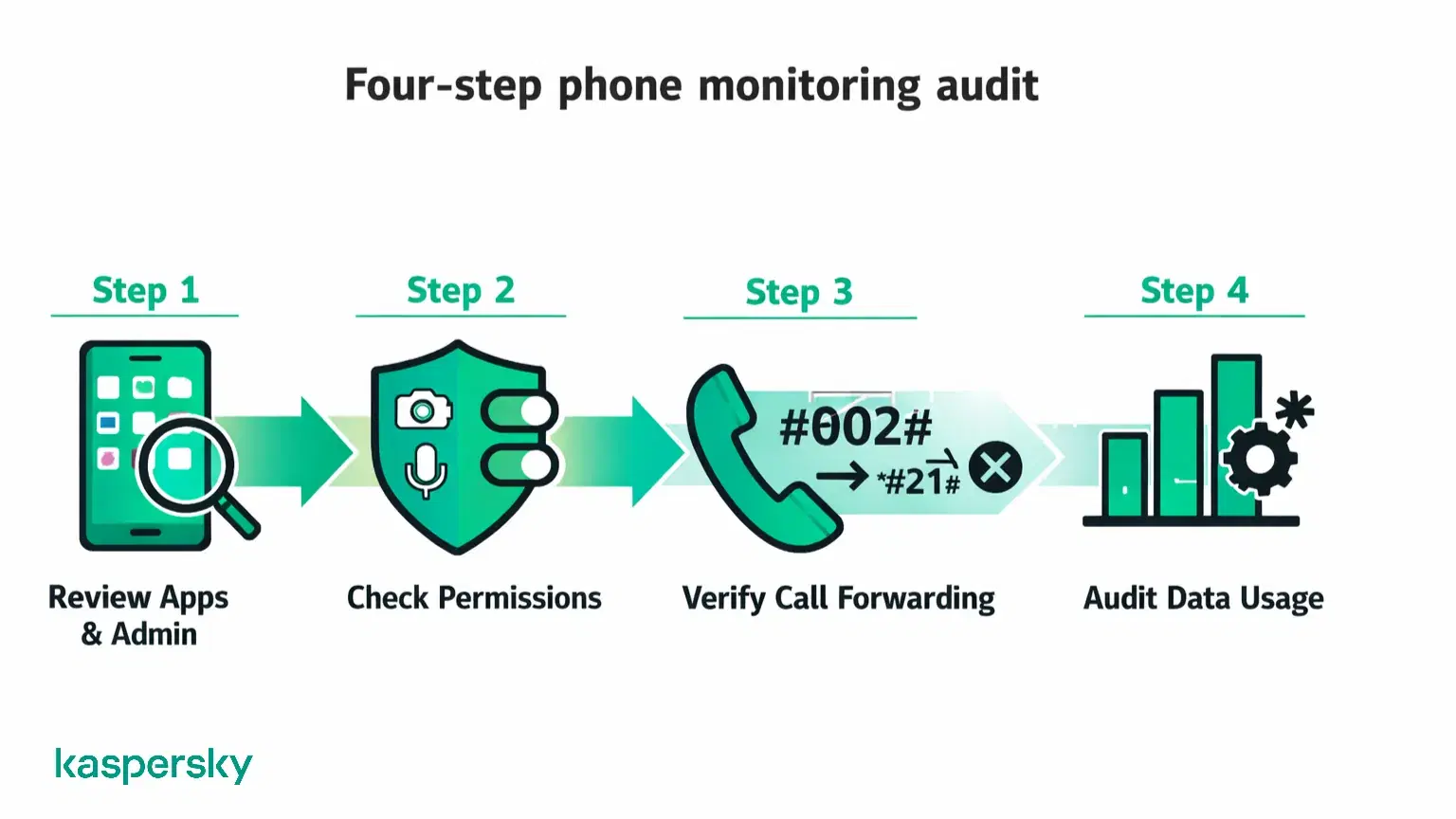
You don’t need specialist tools to check if your phone is monitored. Start by reviewing your full list of installed apps for anything unfamiliar. Pay close attention to any apps that have access to your camera, microphone, and location. Then, check your call-forwarding settings, and look for apps consuming unusual amounts of background data.
Review installed apps and device admin settings
Open your full app list and go through every entry carefully.
On Android:
- Go to Settings > Apps and review the complete list, including system apps if that option is available.
- Check Settings > Security > Device Admin Apps. Monitoring software sometimes registers there to prevent deletion. Look for any app listed as a device administrator that you didn’t install.
On iPhone:
- Work through all home screen pages and check Settings > General > iPhone Storage for a complete inventory.
- Go to Settings > General > VPN & Device Management. An unfamiliar configuration profile could indicate monitoring software installed using an enterprise or developer certificate.
Review app permissions and sensor activity
Go to your phone’s privacy settings and check which apps hold access to the microphone, camera, and location.
On Android: go to Settings > Privacy > Permission Manager.
On iPhone: go to Settings > Privacy & Security.
Look for apps with permissions they don’t need. While a navigation app needs location and a video chat app may use the camera, there’s no good reason for a newly downloaded game to need microphone access.
Both platforms log recent sensor access. On Android 12 and later, the Privacy Dashboard (Settings > Privacy > Privacy Dashboard) shows a timeline of which apps accessed sensors and when. On iPhone, the Privacy & Security screen shows a summary of recent app activity.
Check call-forwarding settings
Dial ##002# from your phone’s dialer to cancel any active call forwarding. This is a universal code that works on most networks around the world. You’ll usually see a confirmation that call forwarding has been disabled or that no forwarding was active.
If you want to check your settings first, dial *#21# to see whether unconditional call forwarding is enabled on supported networks. If your calls are being forwarded to a number you don’t recognize and didn’t configure yourself, contact your mobile carrier. Unexpected forwarding can indicate unauthorized changes, although some carriers legitimately forward calls to voicemail or other network services.
Check background data by app
If an app you rarely use consistently registers background data transfers, it’s worth investigating. While you investigate, you can restrict background data so it stops transmitting without having to uninstall it.
On Android: go to Settings > Apps, select the app, and choose Restrict Background Data under Data Usage.
On iPhone: go to Settings > Mobile Data and toggle off Background App Refresh for the app in question.
What to do if your phone is tapped?
If your phone is tapped, change your account passwords, remove suspicious apps, run a security scan or, as a last resort, perform a factory reset.
Immediate actions to secure the device
Before touching anything on the phone, use a different device to change the passwords for your key accounts such as email and banking. Depending on how long the spyware has been active on your phone, your passwords may already have been captured so it doesn’t help to change credentials on the device itself.
Enable Airplane Mode to prevent any further data transmission immediately. Then navigate to your battery usage screen or task manager and close any processes you don’t recognize.
Run a mobile security scan
Run a scan using a reputable mobile security application to detect any spyware, stalkerware, or monitoring tools that manual review may have missed. On Android, a dedicated security app such as Kaspersky Mobile Security can scan your device for malicious apps, detect hidden threats, and provide more thorough protection than basic built-in tools.
On iPhone, third-party security apps have more limited access to system processes due to Apple’s sandboxing approach. Kaspersky for iOS can check for known malicious configuration profiles and identify behaviors associated with phone monitoring.
Protect Your Phone from Hidden Monitoring
Phone tapping and spyware can expose your personal data and activity. Kaspersky Mobile Security detects and removes threats, blocks malicious apps, and helps keep your device protected from unauthorized monitoring.
Try Kaspersky Mobile SecurityRemove spyware and monitoring apps
Uninstall any app you’ve identified as suspicious by going to Settings > Apps and selecting Uninstall.
If the app has registered itself as a device administrator, you need to revoke that privilege by navigating to Settings > Security > Device Admin Apps. Deselect the app, then return to your app list to uninstall it.
On Android, you can enable Safe Mode to disable all third-party apps. This makes it easier to remove malware. To enter Safe Mode on most Android devices, hold the power button, then press and hold the Power Off option until a Safe Mode prompt appears.
Apple uses an app sandbox model, so there are fewer manual removal options. On an iPhone you can uninstall suspected monitoring software if it was installed through a configuration profile by removing the profile. To do this, go to Settings > General > VPN & Device Management.
Factory reset as a last resort
If a security scan returns results you can’t remove, or if signs of monitoring continue after following the steps above, a factory reset wipes the device back to its original operating system state and removes all installed apps, including persistent spyware.
Before resetting, back up your contacts, photos, and essential documents. Avoid restoring from a full device backup afterward, as this could reinstall the spyware alongside your legitimate files. After the reset, reinstall apps manually from official stores rather than from a backup snapshot.
How to prevent someone from tapping your phone
Control who can install software on your device and what that software can access, and you’ll prevent phone tapping.
Strengthen basic phone security
Spyware installation happens when your device is left unlocked and unattended. You can protect yourself from phone tapping with a strong PIN, password, or biometric lock. Enable a lock screen immediately if you don’t already have one in place.
Keep the operating system and all installed apps updated. Security patches close the vulnerabilities that spyware exploits to install itself or stay hidden, and the best option to enable automatic updates.
On Android: go to Settings > System > Software Update
On iPhone: go to Settings > General > Software Update
Two-factor authentication (2FA) on your key accounts will also help limit the damage. If an attacker who obtains a password still needs a second verification step to access the account, you reduce the impact of credential theft further.
Control app permissions and privacy settings
Review your app permissions every few months. Remove access for any app that doesn’t need it, and switch from ‘always on’ location access to ‘while using’ for apps if continuous background tracking is unnecessary.
For a full view of which apps hold which permissions:
On Android: go to Settings > Privacy > Permission Manager
On iPhone, go to Settings > Privacy & Security category by category.
This takes under five minutes and will give you a quick picture of where you previously granted permissions that aren’t needed.
Protect your browsing privacy
Phishing is one of the most common routes for spyware to reach a mobile device. It happens so quickly, you get a convincing message, delivered by text message, email, or a messaging app, with a link to a page that triggers a download. Before you know it, you’ve given an attacker access to your phone. The easiest rule to implement here: don’t tap links in messages you weren’t expecting, even when the sender looks familiar.
You should also use private browsing mode when visiting unfamiliar sites, and clear your browser’s cookies and cache regularly. Also, keep an eye out for sites that don’t use HTTPS encryption as they don’t protect your browsing from being intercepted, especially on a shared or unfamiliar network.
Use secure network connections
Using public Wi-Fi leaves you vulnerable to man-in-the-middle attacks. This is where an attacker on the same network intercepts traffic between your device and the internet. An attack like this can expose your Personally Identifiable Information (PII), session tokens, and any unencrypted data passing through the network.
To get around this, you can use a VPN (virtual private network) that encrypts your internet traffic before it leaves your device. It is then unreadable to others on the same network. Using Kaspersky VPN on public or unfamiliar Wi-Fi is a practical, effective step to protecting your connection. You should also turn off Bluetooth and nearby sharing features when you’re in a public space to reduce your exposure further.
Download apps safely and avoid sideloading
Only download apps from the Google Play Store or Apple App Store. Both platforms screen apps for malware, including spyware and stalkerware, though neither catches everything. Before you install a new app, check the developer name and read recent reviews. Watch for mentions of unexpected behavior or unusual permission requests.
Sideloading is a documented installation route for stalkerware. Avoid sideloading apps on Android unless you have a very good reason for doing so as sideloading bypasses Play Store screening. On iPhone, the risk is similar from apps distributed through enterprise or developer certificates, which may push software outside Apple’s App Store review process.
Related Articles:
- How to Remove a Virus From an iPhone?
- How to stop phone hacking?
- How to Tell if Your Phone Camera Has Been Hacked
- What are the Best Practices for Mobile Phone Security?
Related Products:
FAQs
Can someone tap your phone without touching it?
Yes, someone can tap your phone without touching it through OS exploits. Some tools, including NSO Group’s Pegasus, use zero-click techniques that exploit software vulnerabilities. This requires no user action. For most people, the realistic threat is stalkerware installed by someone with brief access to an unlocked device.
Can someone listen through your phone microphone?
Yes. Spyware with microphone access can activate it and transmit audio silently. Modern Android and iPhone devices show a visual indicator when the microphone is active, but many people don’t notice it during normal use. Review your privacy dashboard log periodically to catch unexpected microphone access.
Will a factory reset remove spyware from a phone?
Yes, a factory reset wipes the device to its original state, removing all apps and user data, including spyware, because commercially available stalkerware does not operate at the firmware level. Firmware-level malware is an exception, but it’s rare and requires specialist tools to detect.