Microsoft has announced that it is ending support for Windows 11. Wait, what?
In fact, this applies only to Windows 11 version 24H2. Support for this version of the operating system officially ends on October 13, 2026. Here's how to protect your computer from malware and update your OS to a supported version.
Who will be affected by the end of support
The change affects Windows 11 Home and Pro users who haven't yet updated to a current version of the OS. On October 13, 2026, Microsoft will release the final security update for 24H2 and stop issuing new patches and fixing vulnerabilities in the system. Over time, the number of known vulnerabilities that attackers can use to compromise a computer will only grow.
The main risk: vulnerabilities that will never be patched
Windows vulnerabilities have already been behind major attacks and mass infections. In 2017, the WannaCry ransomware exploited EternalBlue, a vulnerability in a Windows network protocol. It affected several versions of the system, including Windows 7, Windows 8.1, and Windows 10. Microsoft fixed it with the MS17-010 update almost two months before the attack began, but many computers were still unpatched. As a result, WannaCry was able to spread automatically between vulnerable machines and infected hundreds of thousands of computers worldwide.
If a new critical vulnerability is found in Windows 11 24H2, attackers could use it to run malicious code, infect the device, or gain access to your data.
Extra protection for Windows
If you can't update Windows yet, Kaspersky Premium can help reduce the risks: it detects malware, blocks dangerous activity, and protects the data on your device.
Try free for 30 daysHow to check which version of Windows you have
To check your current Windows version, go to Settings → System → About. You'll find the version number under "Windows specifications."
How to safely update to Windows 11 25H2
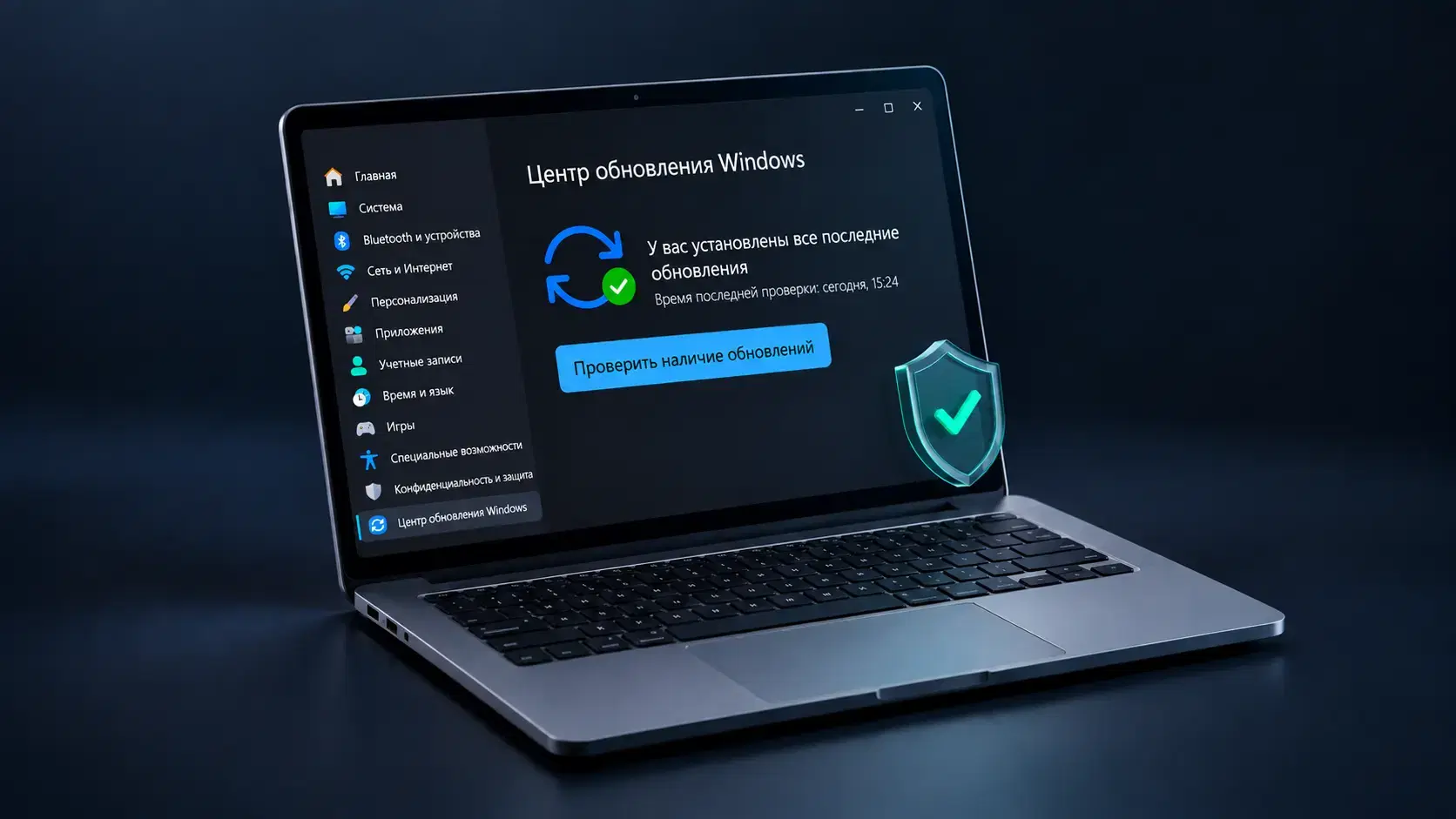
If you're running an outdated version of Windows, open Settings, select "Windows Update," and click "Check for updates."
If the Windows 11 25H2 update is available for your device, it will appear in the list. Click "Download & install," wait for the download to finish, and restart your computer.
Before updating, we recommend backing up your important files and making sure your system drive has enough free space. If you're using a laptop, plug it into a power outlet so the installation isn't interrupted by a dead battery.
Don't download Windows images or "update accelerators" from third-party websites. If the new version isn't yet offered through Windows Update, it's safer to wait for the official rollout: Microsoft may temporarily hold back the update for certain devices because of known driver or software issues.
What to do if the update doesn't show up
If Windows Update returns an error or can't check for updates at all, the problem may lie with the Windows Update service itself. In that case, you can run the built-in troubleshooter: Settings → System → Troubleshoot → Other troubleshooters → Windows Update. It will automatically check for common issues and try to fix them.
There's also a simpler workaround: install the new version of Windows manually. Microsoft offers the "Windows 11 Installation Assistant" for this. It checks your computer's compatibility and performs the upgrade without waiting for the new version to appear in Windows Update.
For businesses: what IT teams should do
Windows 11 Enterprise and Education editions will receive security updates until October 2027, which gives IT teams more time to migrate.
Still, you shouldn't update your entire fleet of computers at once. Microsoft recommends installing the new version of Windows on a test group of devices first, covering a variety of hardware configurations and installed software. This lets you verify that business applications, security tools, drivers, and peripherals work correctly before a large-scale rollout.
If testing goes smoothly, you can gradually roll the update out to the remaining devices. Microsoft calls this approach a ring-based deployment: you move from a small pilot group to the bulk of your infrastructure.
Useful articles:
- Software updates: why they matter and how to automate them
- What is malicious code?
- Malware and exploit detection
Recommended products: