Many small companies manage business passwords in a spreadsheet that lists every login the team shares, from the accounting software to the company’s social media accounts. It’s easy to set up, but it becomes difficult to keep it accurate and secure as more people need access.
A business password management tool keeps those logins encrypted and gives each employee access to only the ones they need. Here’s why spreadsheets fall short, how a password manager works for a small team, and how to move your existing passwords across.
Why is sharing business passwords in spreadsheets risky?
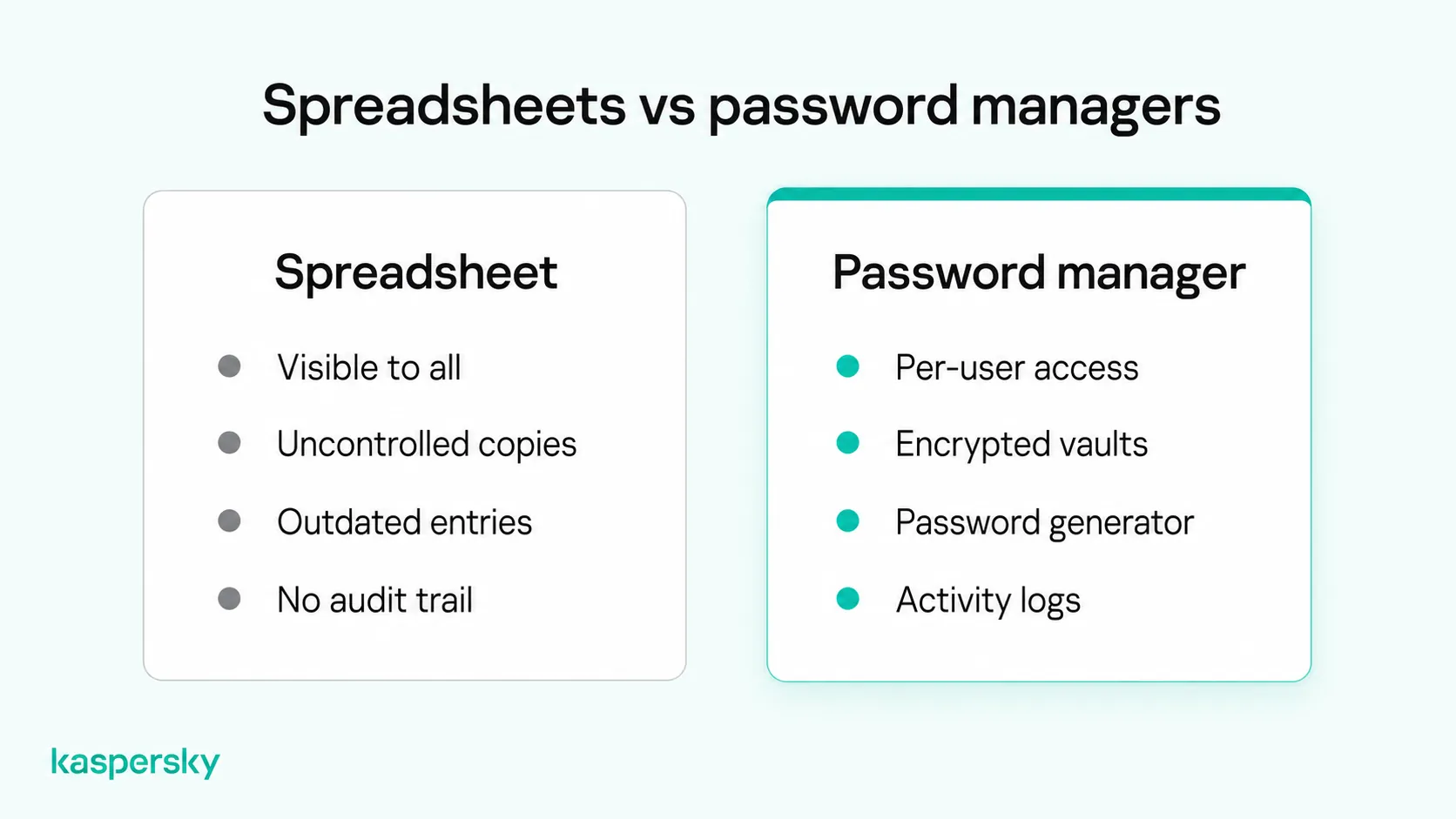
Sharing passwords in a spreadsheet is risky because anyone who opens the file can see every login. Copies can be accessed by people who shouldn’t have them, and the sheet can become outdated or lose passwords to an accidental edit.
Small businesses often create a password spreadsheet when they first sign up for accounting software and a few social media accounts, so the rest of the team can find the logins. At that stage, Excel and Google Sheets make sense because they’re already on most work computers and most people know how to use them, but problems start to appear as the team grows:
- Accidental exposure: a sheet shared with “anyone who has the link,” or attached to an email, can be opened by people outside the business, such as former contractors or anyone the email gets forwarded to.
- Uncontrolled copies: employees may download the file, paste passwords into a chat, or save their own version, which leads to duplicate files and makes it hard to know which one is the master copy.
- Outdated credentials: when someone changes a password and forgets to update the sheet, colleagues get locked out and may start keeping their own notes, which creates even more copies.
- Unclear access: a spreadsheet can’t show which passwords an employee looked at or copied, so when someone leaves the company, it’s hard to know which logins they had, and which ones need to be changed.
Excel can encrypt a workbook with a password, and Google Sheets lets you choose who can open a file, but these settings protect the file rather than the individual logins inside it. Neither tool can generate strong passwords, fill them in for you, or show who used which login.
- Anyone who can open a password spreadsheet can usually see every login, and copies are hard to keep track of.
- A business password manager stores logins in encrypted vaults and gives each employee access to only the ones they need.
- Where a service allows separate user accounts, giving each employee their own login is usually safer than sharing one.
- Moving to a password manager involves reviewing your accounts, replacing weak passwords, and deleting old spreadsheet copies.
- When someone leaves, change any shared passwords they could see, because removing their vault access may not be enough.
- Multi-factor authentication and protected devices can make it harder for attackers to use stolen passwords.
How can small businesses manage passwords without spreadsheets?
Small businesses can manage passwords without spreadsheets by giving employees individual accounts and using a password manager for shared credentials. Password managers provide encrypted storage, simplify access, and help control who can use business logins.
How do business password managers work?
A business password manager stores credentials in an encrypted vault, and each employee signs in with their own account to see their personal logins and any shared vaults an administrator has authorized them to use.
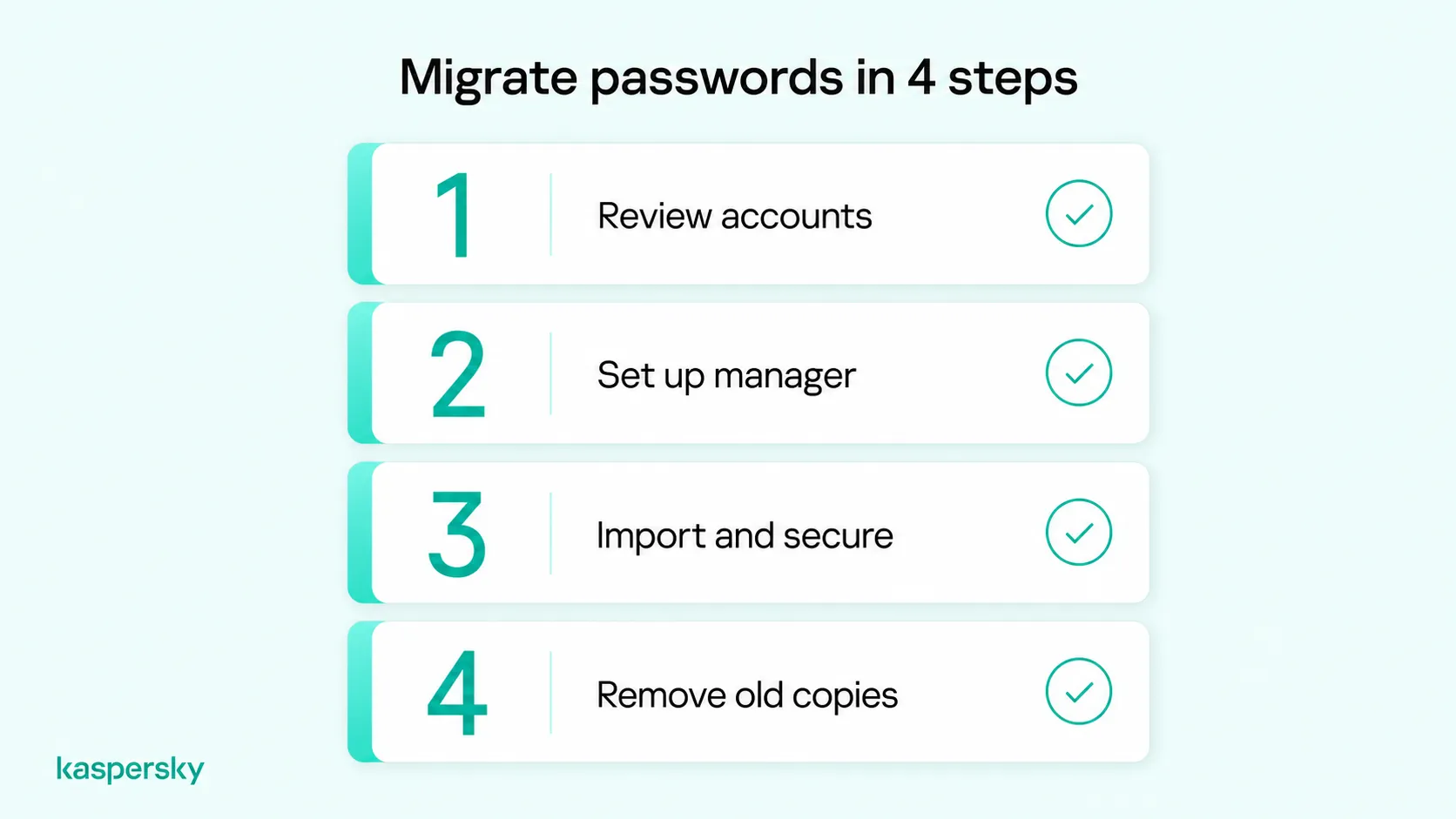
Business password managers use encryption to protect stored credentials. Employees typically unlock their vaults with a master password or another supported authentication method, such as a fingerprint. Encryption and account recovery features vary between providers. Employees sign in with their own accounts, while vault permissions determine which passwords and shared credentials they can access.
Once it’s set up, the password manager can generate long, random passwords and automatically fill in login details. Many password managers check website addresses before autofilling credentials, which can help prevent password entry on fake login pages but does not eliminate phishing risks.
Admin roles, activity logs, and sharing permissions vary from one product to the next, so check what each plan includes before you sign up.
How can employees share business passwords securely?
Employees can share business passwords securely through shared vaults, which let authorized staff use a login without emailing or messaging the password. Where a service allows separate user accounts, it’s usually safer to give each person their own login.
Accounting software, Microsoft 365, Google Workspace, and many social media tools let you invite staff as separate users, each with their own login and permissions. That way, there’s no need to share passwords, and you can remove one person’s access without affecting anyone else.
Some services only allow one login per account, so a shared vault is the safer way to give several people access. Employees open the vault and let autofill sign them in, so they don’t need to copy the password into a chat or a note. Some password managers can also hide the password from the employee, which makes it harder to pass on.
For example, a marketing team might have a shared vault with the company’s social media accounts and newsletter platform. The accounting software and online banking logins would be kept in a separate vault that only the owner and the bookkeeper can open.
Independently tested and awarded by the industry's leading labs.



What features should a small business password manager have?
A small business password manager should offer encrypted storage, shared vaults, per-employee access controls, multi-factor authentication, and a safe way to recover accounts. It should also be simple enough for staff who aren’t technical to use every day.
|
Feature |
What it does for a small business |
|
Encrypted vaults |
Keeps stored credentials encrypted, so a stolen copy of the vault is difficult to read |
|
Shared vaults |
Lets teams use the same logins without emailing or pasting passwords |
|
Access controls |
Limits each employee to the credentials their job requires |
|
Multi-factor authentication |
Adds a second check when employees sign in to the password manager |
|
Account recovery |
Helps restore access through supported recovery options, depending on the provider and configuration |
|
Password generator and strength checks |
Creates strong passwords and flags weak or reused ones |
|
Device and browser support |
Works on the computers and phones your team already uses |
Small businesses may not need advanced enterprise features that increase costs and setup complexity. When comparing password managers, prioritize essential security features, ease of administration, compatibility with existing devices, and the total cost for your team.
How do you move business passwords from spreadsheets to a password manager?
To move business passwords from spreadsheets to a password manager, review existing accounts, configure employee access, transfer and secure credentials, and remove outdated spreadsheet copies. Most small businesses can complete these steps without a dedicated IT team.
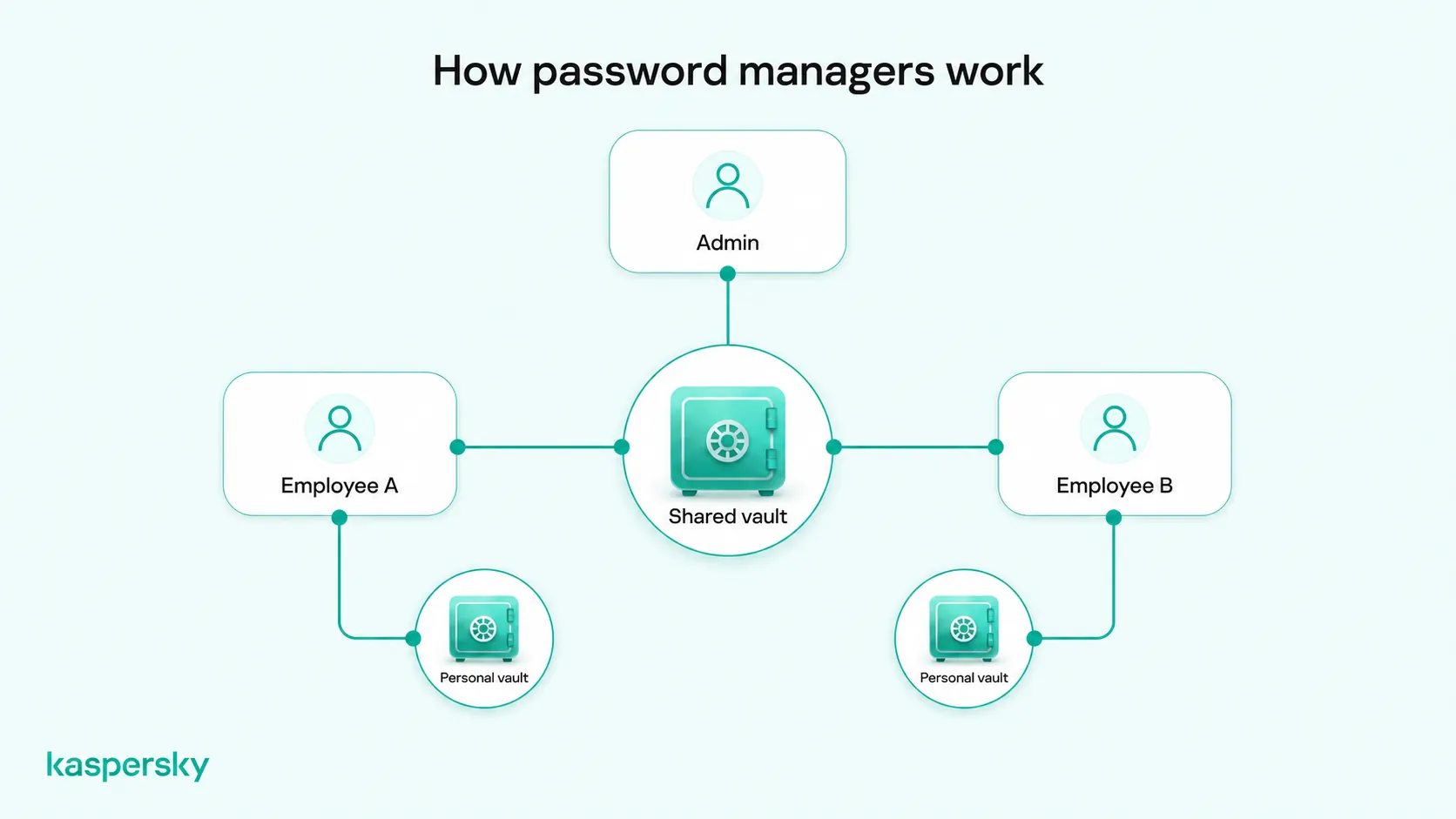
Step 1: Review existing business accounts and passwords
Start with the spreadsheet itself, then check the other places where passwords are often saved, such as shared documents, email threads, and browsers. As you list every business account, mark any duplicates, outdated passwords, and accounts you no longer use, so you don’t carry logins for old tools over into the new system.
For each account, decide who owns it and which employees need it for their work, starting with the most sensitive services, such as business email, banking and payment platforms, accounting software, and customer databases. Secure business email first, because it can often be used to reset the passwords for your other accounts.
Step 2: Set up the password manager and employee access
Once you’ve created an administrator account, invite each employee to set up their own account, then group your shared credentials into vaults by team, such as marketing, finance, and operations.
Decide who gets access to each vault and assign at least two trusted employees separate administrator accounts. Configure the password manager’s available recovery options and make sure the business can maintain access if an administrator leaves or an employee forgets their master password.
Step 3: Transfer passwords and secure business accounts
Many password managers let you import a CSV file exported from Excel or Google Sheets, though you may first need to rename or reorder the columns to match the password manager’s import template. If you only have a short list, typing the logins in by hand may be quicker.
An exported CSV file holds every password in plain, unencrypted text, so keep it on one trusted computer, out of email and cloud folders, and delete it as soon as the import is done.
After the import, check that each entry works, replace any weak or reused passwords with generated ones, and turn on multi-factor authentication wherever it’s available.
Step 4: Remove old spreadsheets and introduce the new workflow
When every login works from the password manager, delete the old spreadsheets, temporary exports, and sharing links, and check email attachments, downloads folders, and shared drives for stray copies.
Some copies may be saved in backups or archives that you can’t delete right away, so restrict who can open them until they expire or can be removed.
Finally, show employees how to open shared credentials, generate new passwords, and report login problems. A quick demonstration at a team meeting is often enough to get everyone started.
How can small businesses protect passwords and employee accounts?
A password manager helps businesses store and share credentials securely, but it cannot protect against every threat. Employee devices, account permissions, and additional security measures also need attention.
How should businesses manage employee password access?
Give each employee access only to the credentials their role requires, and review it whenever someone joins, changes roles, or leaves. This approach is called least privilege, and it can limit the damage if an account is compromised.
Removing someone from the vault stops them from opening it again, but they may already have copied a shared password, saved it in a browser, or written it down.
When someone leaves the company, revoke their access to business services and change shared passwords they could have accessed, prioritizing sensitive accounts such as email and financial platforms.
What other security measures protect business passwords?
Strong passwords and multi-factor authentication make business accounts harder to break into, while device security, software updates, and a response plan help protect against threats a password manager can’t stop.
- Use strong, unique passwords for every account, and check password strength on anything linked to money or customer data.
- Turn on multi-factor authentication, starting with business email, financial accounts, and administrator logins, so a stolen password on its own may not be enough to get in.
- Protect employee devices against phishing and malware, since a hacker who infects a laptop may capture passwords as they’re typed.
- Keep operating systems, browsers, and business apps updated, because updates often patch security vulnerabilities that attackers exploit.
- Agree on a response plan for suspected password theft. If you think a password has been stolen, change it and any related logins, look through recent account activity for sign-ins you don’t recognize, and check any device that may be compromised.
Related Articles:
- How to simplify IT security for businesses without an IT team
- What is the power of a password manager for businesses?
- A comprehensive guide to small business cybersecurity
- Email security for small businesses
Related Products:
FAQs
Can employees access business passwords when working remotely?
Yes. Most business password managers sync across devices, so employees can reach authorized credentials from home or on the road. Requiring multi-factor authentication and keeping remote devices updated can reduce the risk of a stolen login.
Should employees share one password manager account?
No. Each employee should have their own account, so access can be limited, tracked, and removed one person at a time. Logins that several people need can go in a shared vault instead.
What happens if a business password manager is compromised?
The impact depends on what was compromised and how the password manager protects stored data. Follow the provider’s guidance, secure affected accounts, review suspicious activity, and change potentially exposed passwords.
Who should have access to a company’s master passwords?
Each employee should keep their master password private. Businesses should assign separate administrator accounts to trusted personnel and configure secure recovery options. Sharing a single administrator login reduces accountability and should be avoided.