Most home routers run for years untouched, which is exactly why attackers target them. A compromised router can putevery device on the network at risk, without needing to break into a phone or laptop directly.
Because your router sits between your devices and the internet, someone with access may be able to monitor traffic, redirect you to fake websites, or interfere with your connection without obvious warning signs.
Spotting suspicious behavior early can help you regain control faster and reduce the risk of password theft, malicious redirects, or further problems across your network.
What you need to know
- A hacked router can affect every device on your Wi-Fi network, including phones, laptops, smart TVs, and connected home devices.
- Several warning signs can point to a hacked router, and this article walks through 12 of the most useful ones to check.
- Slow internet alone does not mean your router has been hacked. Weak signal, network congestion, or ISP issues can look similar.
- If you suspect a hack, disconnect your router and follow the recovery steps in order before reconnecting to the internet.
- Weak passwords, outdated firmware, and unsafe settings are among the most common reasons home routers get compromised.
- If your router no longer receives security updates, replacing it may be the safer long-term option.
12 signs your router has been hacked
A hacked router can show up in different ways, from unusual network behavior to settings changing without your input. The warning signs below can help you tell the difference between a normal Wi-Fi issue and something that may need immediate attention
1. Unusually slow internet
Speed drops happen for many reasons, but a sustained slowdown across every device, even at off-peak hours with light usage, needs to be investigated. Hijacked routers route traffic through extra hops or run background processes that use a lot of bandwidth. If a speed test from a wired connection is also slow, the problem is upstream of your devices.
2. Unexplained data usage spikes
Some internet service providers send alerts when monthly data climbs unusually fast. A spike during a quiet week, when no one is streaming or backing up files, usually points to background traffic the router itself is generating, or to a device on the network sending data out.
3. Router activity when idle
Status lights flickering steadily when every connected device is powered off or a router casing that runs unusually warm at 3 a.m. should be checked. Routers usually show limited activity when no devices are in use, so constant activity may be worth checking.
4. Unknown devices on your network
Open the admin panel and look at the connected device list. If the total count has climbed since you last checked, or you spot any connection you cannot account for (a generic name like "android-1f4b" or a vendor you don’t recognize), investigate. Each connected device has a MAC address and an IP address your router has assigned. Cross-check against the phones, laptops, smart bulbs, and TVs you own.
5. Router login not working
If the admin password you set last year suddenly fails and no one in the household changed it, then your authorization has been revoked. Attackers commonly change admin credentials after gaining access to lock the legitimate owner out of the settings you need to evict them.
6. Changed Wi-Fi network name (SSID)
Your network has a specific name that shouldn’t suddenly change. If the network name now reads differently, or a near-identical clone has appeared alongside it, it may have been changed by a hacker. A renamed network usually means someone with admin access made the change, or a parallel network has been set up to trick your devices into auto-connecting.
7. Wi-Fi password no longer works
Phones and laptops that connected fine yesterday suddenly reject the saved Wi-Fi password and keep prompting for re-authentication. Two causes are common: either an attacker has rotated the password to lock you out, or the encryption standard has been downgraded from WPA3 to WPA2 or lower, which breaks older saved profiles.
8. Changed router settings
Open the settings panel and look for changes you did not make. Look for remote management toggled on, port forwards that were not there before or firewall rules that have been relaxed, and admin accounts you do not recognize.
9. Suspicious DNS settings
Domain Name System entries should match your provider or a known service like 1.1.1.1 or 8.8.8.8. If they have shifted without anyone in the household touching the configuration, or you see random IP addresses pointing to servers in countries you haven’t connected to, that is a red flag. DNS hijacking lets attackers redirect traffic away from your bank toward a phishing clone, but the URL bar will look right to you.
10. Browser redirects
You type a familiar address, and a different page loads. URLs may look almost identical, with a swapped letter or an unusual top-level domain. Redirects happen across browsers and across devices, because the manipulation lives at the router level, not the endpoint.
11. Frequent pop-ups or fake security alerts
Pop-ups warning of malware infections on legitimate news sites, or browser windows nagging you to install software or a fake "system update," are often router-level injection. The router, or a malicious DNS server it points to, is rewriting what your browser receives.
12. Ransomware messages
Some router hacks drop ransomware notes directly into the browser demanding payment to restore access or threatening to leak data scraped from network traffic. Pay nothing. Disconnect, document the message, and treat the router as fully compromised.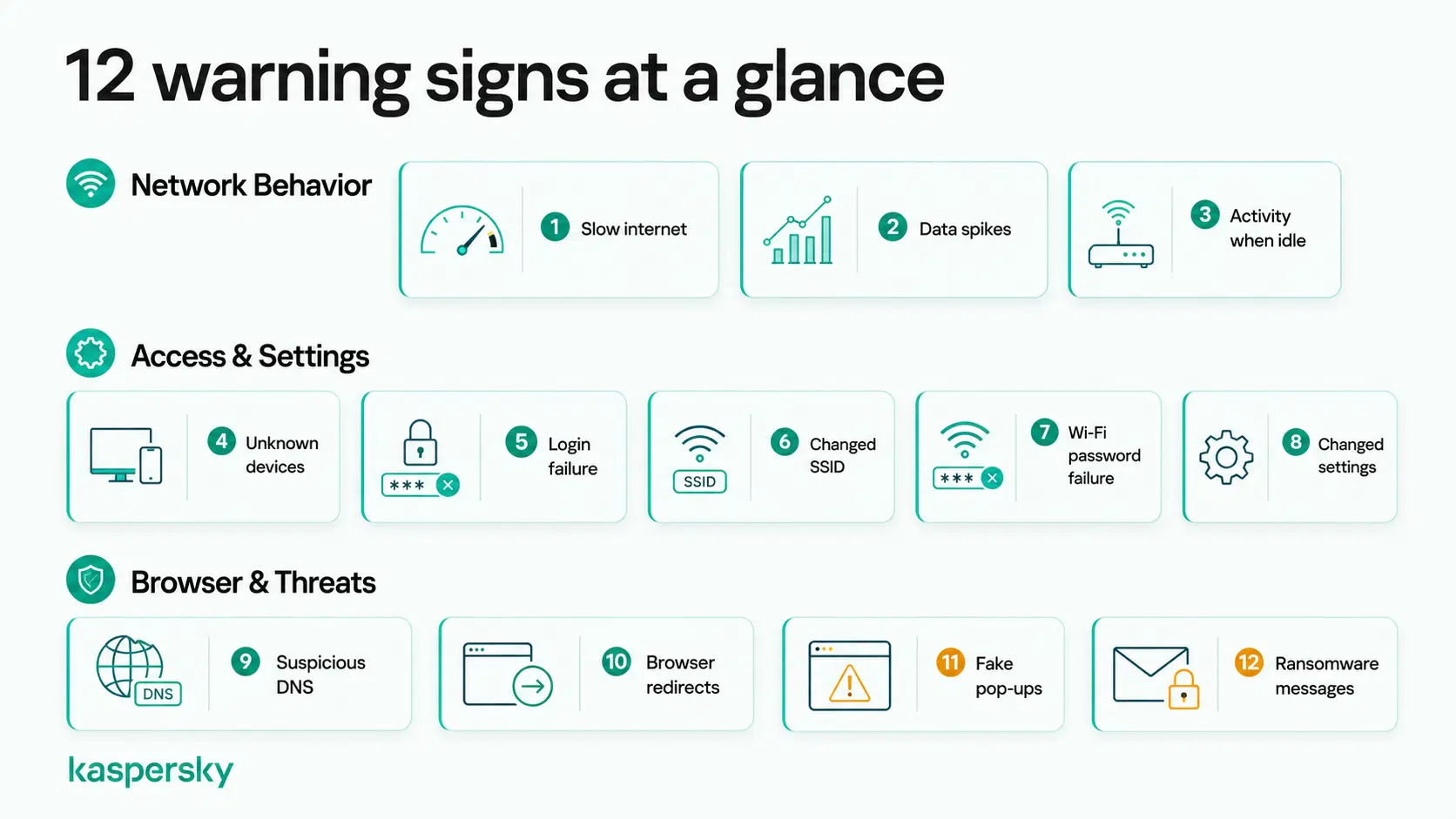
Is your router hacked or just slow internet?
Your router is probably not hacked if the slowdown only affects one device, lines up with a known ISP outage, or clears after a power-cycle.
Consider a possible hack when multiple devices slow down together, unfamiliar devices appear on the network, or settings have changed without your input. A cluster of symptoms is a more reliable signal than any single one in isolation.
Common causes of slow or unstable internet
Wi-Fi signals weaken through walls, especially older brick or plaster. Channel congestion in dense apartment buildings is another usual suspect, where you have dozens of nearby networks fighting for the same airwaves. Check the device load as ten smart-home gadgets, two streaming TVs, and someone backing up a phone over Wi-Fi will throttle a budget router quickly.
Lastly, check for ISP-side outages and throttling. A quick check of your provider’s status page, or social media reports for your area will flag any known issues.
Quick checks to rule out a hack
Before assuming the worst, work through the list below. In under five minutes and without any specialist tools, here's how to check if your wifi is hacked:
- Power-cycle the router. Pull the plug, wait sixty seconds, plug it back in.
- Compare across devices. If only one phone is slow, the router is probably not compromised.
- Run a speed test on a wired ethernet connection to isolate Wi-Fi from the line.
- Check the ISP status page or call support.
- Review the connected device list for anything unfamiliar.
How do routers get hacked?
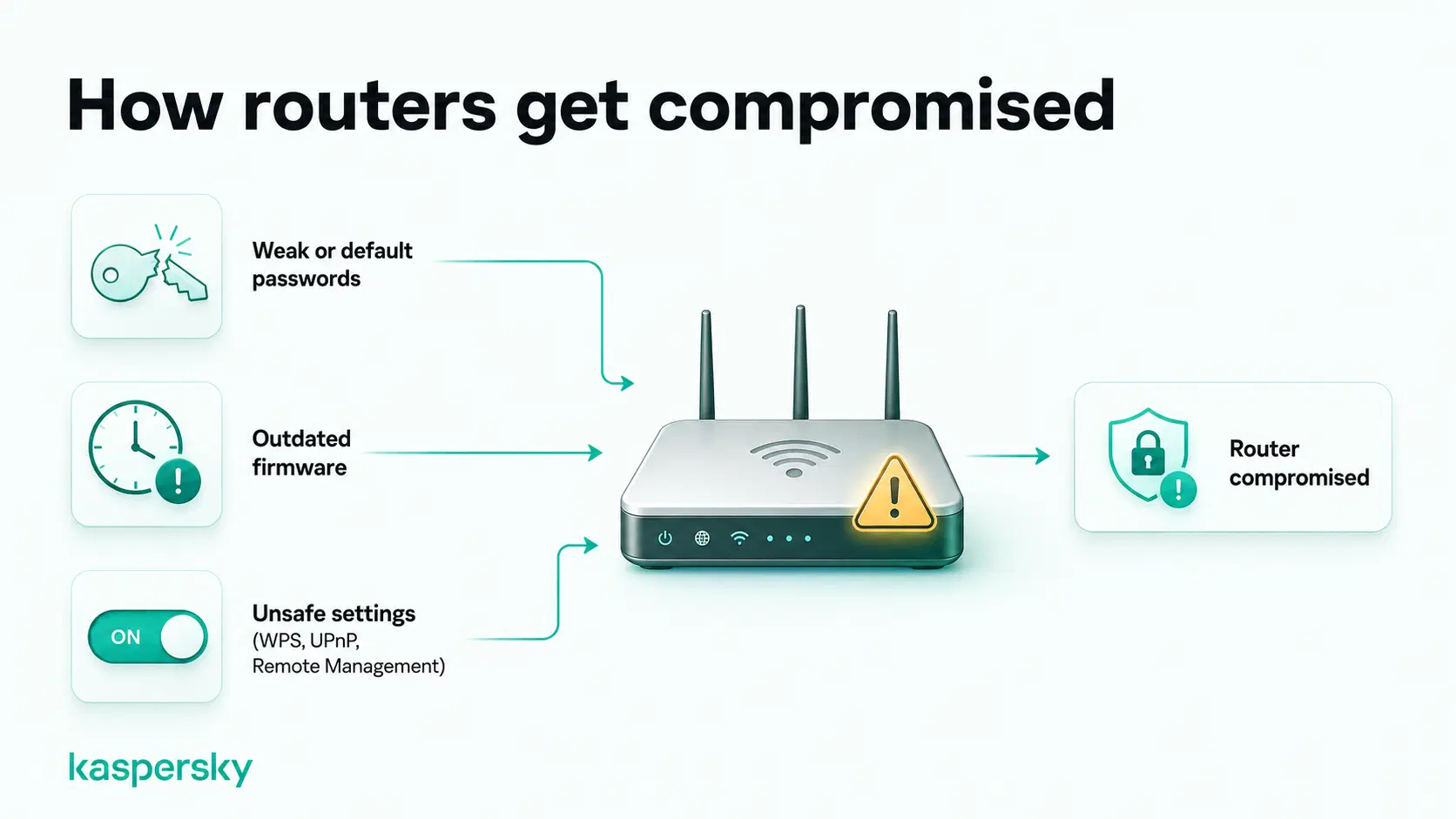
Routers mostly get hacked through weak or default admin passwords, outdated firmware with unpatched vulnerabilities, and risky settings like WPS, UPnP, or remote management left enabled.
Router hacking is not usually a targeted attack. Most home compromises come from broad automated scans that cost an attacker almost nothing to run.
Weak or default passwords
Default admin credentials are public knowledge. Manufacturers list them in manuals, and attackers maintain searchable databases of them. Combined with automated scanning tools, this leads to large numbers of router compromises. Reused passwords exposed in past data breaches are another leading entry point.
Outdated firmware
Firmware patches close known vulnerabilities, and routers often go years between updates because nobody opens the admin panel. A vulnerability disclosed in 2023 is still exploitable in 2026 if the router never received its patch.
Unsafe router settings
Several settings ship enabled by default and weaken your router’s security. Wi-Fi Protected Setup (WPS) can be brute-forced in hours. Universal Plug and Play (UPnP) lets any device on the network open firewall ports without asking. Remote management puts the admin panel on the public internet, where automated scanners find it within minutes.
When these settings are exposed or misused, they can make the router easier to access from inside or outside the network.
What should you do if your router is hacked?
If you think your router has been hacked, don’t panic. The most important thing is to act in the right order. Jumping straight to random fixes can make troubleshooting harder or leave parts of your network exposed.
Follow these steps below to regain control of your router and secure your network safely.
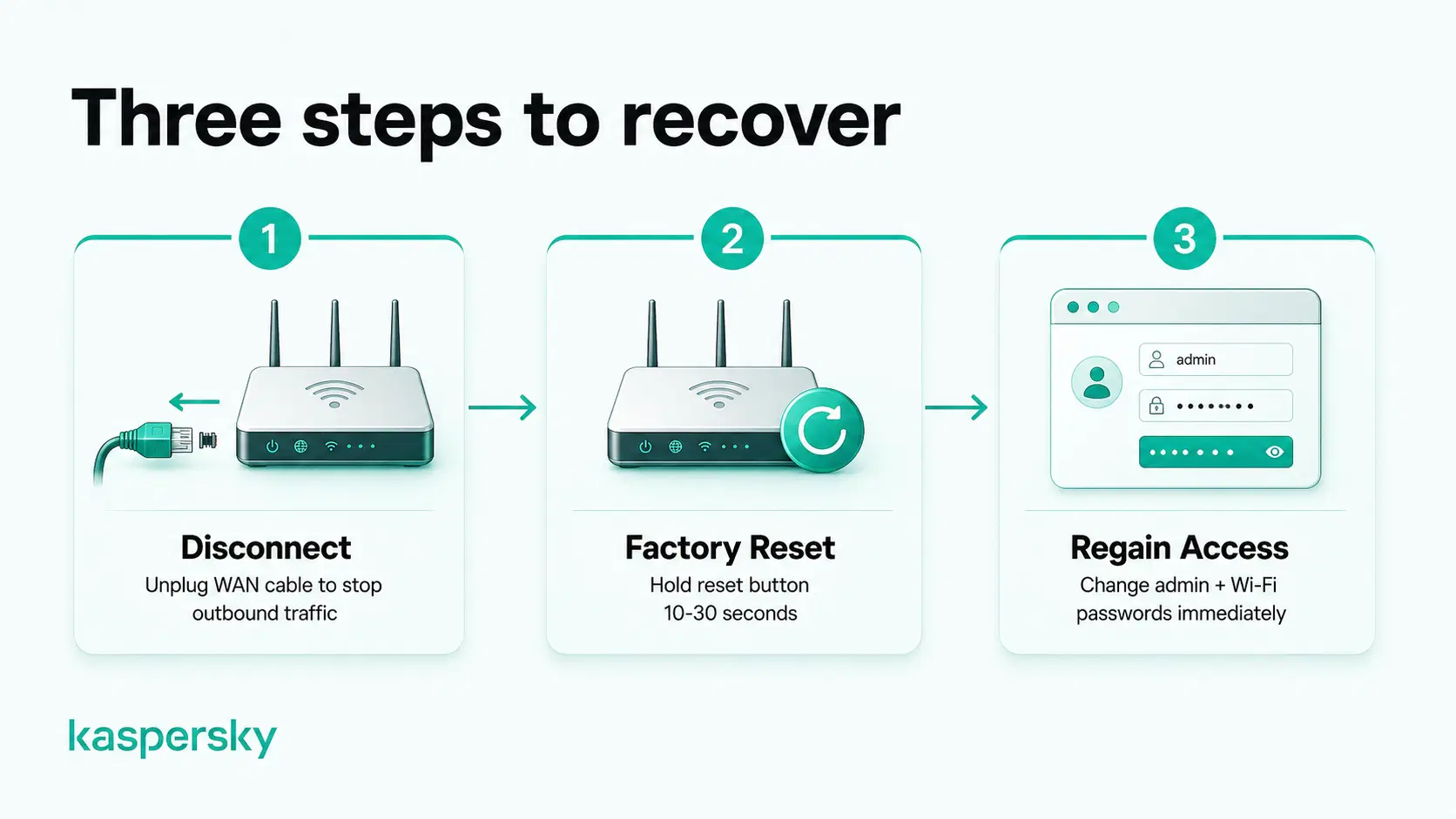
Step 1: Disconnect your router
Unplug the WAN cable, the one running from your modem or the wall. This stops outbound traffic instantly. If the device is a combined modem-router, switch off the internet connection and leave the router powered on for now so you can still log in.
Step 2: Factory reset your router
Hold the recessed reset button (possibly using a paperclip) for ten to thirty seconds, depending on the model. Default settings come back, unauthorized changes are erased, and the unit reboots clean. Your Wi-Fi password and SSID will reset and every device in the house will need to reconnect.
Step 3: Regain access to your router
Open a browser and enter the router’s default IP address (typically 192.168.0.1 or 192.168.1.1, sometimes 10.0.0.1 for cable gateways). You can find your router’s IP address on the sticker that lists the default admin credentials, usually on the base of the router.
Log in with the manufacturer’s default admin credentials, usually printed on a sticker on the underside. Change the admin password immediately as well as the Wi-Fi password. Set the SSID to something unique that doesn’t include your address or surname.
How can you prevent your router from being hacked again?
Set a strong unique admin password, switch to WPA3 encryption, disable WPS, UPnP, and remote management, enable automatic firmware updates, and change the SSID to something neutral. Install security software on every laptop and phone that connects, because router settings can’t block threats inside emails or downloads.
A security suite like Kaspersky Premium adds a layer of network and device-level protection that catches what router settings miss.
Secure your home network
Kaspersky Premium scans connected devices, flags weak Wi-Fi settings, and blocks malicious sites that exploit router vulnerabilities. Protection for the whole household, in one app.
Get Kaspersky PremiumSecure your router settings
- Set a strong, unique admin password. Twelve characters minimum.
- Use WPA3 encryption where supported, WPA2-AES otherwise. Avoid WEP and the deprecated TKIP.
- Disable WPS, UPnP, and remote management.
- Change the SSID to something neutral.
- Enable the router’s built-in firewall and any default attack-mitigation features your model offers.
Keep your router updated
Firmware updates are the single highest-value security action available to a home user. Check the admin panel monthly. Turn on automatic updates if your model supports them. If the manufacturer has stopped issuing patches, the router has reached end-of-life. It is a permanent vulnerability sitting on your network and should be replaced.
Secure your devices and network
Run periodic malware scans on every laptop, phone, and tablet that touches the network. A clean router can’t stop a compromised device from leaking data on its own.
Mobile devices are easy to overlook. Verified G2 reviewers highlight Kaspersky’s “strong malware detection” and real-time protection across files and websites, which is why pairing your router work with Kaspersky Mobile Security adds an important layer of security. Use a guest network for visitors and IoT gadgets so they cannot reach your primary devices.
What can attackers do with a hacked router?
A hacked router gives attackers a position between every device on the network and the internet. From there, they can join the router to a botnet, harvest credentials and browsing data, or redirect traffic to phishing sites.
What data is at risk
Browsing history (which sites you visit, when, and how often) leaks even when individual pages are encrypted. Login attempts to sites without HTTPS expose credentials directly. Older protocols, old IoT devices, and any unsecured connection can hand over content as well as metadata.
How attackers use hijacked routers
Most hijacked routers are added to botnets that route spam, mine cryptocurrency, or launch denial-of-service attacks against other targets. Others listen in on the household, redirecting banking traffic to phishing clones or seeding malware onto connected devices. Kaspersky’s Q2 2025 IoT threat data shows Mirai variants and the NyaDrop botnet account for the largest share of home router infections.
What to do after a potential data breach
- Change passwords on critical accounts (email, bank, primary social) from a clean device, not the one you used through the hacked router.
- Turn on two-factor authentication everywhere it is offered. If it’s not available, use SMS verification or an authenticator app.
- Watch financial statements and email login history for the next 90 days. Check whether any of your credentials surface on the dark web through a reputable monitoring service.
- Use a VPN on the affected devices going forward.
- Notify your bank if you have any reason to suspect financial data exposure to flag the account proactively.
Should you replace your router after a hack?
Routers don’t always need replacing after a hack. A factory reset and password change fix most hacks. Replace the router if firmware updates have stopped, problems return after a clean reset, or the device is more than five years old without WPA3 support.
Related Articles:
- How to set up a secure home network
- What is DNS hijacking?
- Securing the Internet of Things in the smart home
- What is two-factor authentication?
Related Products:
FAQs
Can a hacked router infect your devices with malware?
Yes. A hacked router can swap legitimate downloads for malicious files, push fake update prompts that install malware, or inject harmful code into websites you visit. Once one device is infected, it can spread to others. Antivirus software on every phone and laptop blocks most of these attacks.
Can hackers use your router for illegal activity?
Yes. A hacked router can be used to send spam, attack other websites, or hide a criminal's identity behind your internet connection. Because the traffic comes from your IP address, any investigations land on you, not the attacker.
How often should you check your router for security issues?
Check your router monthly. Log into the admin panel, scan the connected device list, verify DNS settings match your provider, and apply any pending firmware updates. Households handling sensitive data or recovering from a past account takeover should check every two weeks.
Can a router hack bypass two-factor authentication (2FA)?
Sometimes. If attackers redirect you to a fake login page, they may capture both your password and one-time verification code. Two-factor authentication still adds strong protection, but it works best alongside a secure network.