Most browsers offer a private or incognito mode, and there's a good chance you've used one at some point. What's less clear is what private browsing protects you from, and what it leaves wide open. The name implies anonymity, but that’s not quite what these modes deliver.
What you need to know:
- Private browsing is a feature built into your web browser, not a separate browser or anonymity tool.
- It prevents your device from saving your browsing history, session cookies, and form data after you close the window.
- Your IP address, your internet service provider, and any website you visit can still see your activity.
- Logging into an account during a private session ties that activity to your identity.
- Private browsing doesn’t protect against malware, spyware, or phishing.
- For network-level privacy, you need a VPN. Private browsing doesn’t provide it.
What Is Private Browsing?
Private browsing is a browser feature that creates a temporary session separate from your main profile. It doesn't save your history, cookies, or form entries. So, if you close the window that data is gone. Your internet service provider (ISP) and any site you visit can still see your activity while the session runs.
It goes by a number of different names: Chrome calls it Incognito mode, Edge calls it InPrivate, and Safari and Firefox both use the name Private Browsing. But, while the name changes, they all work the same. All of them give you a clean, isolated session that wipes itself when you close it. You can read more about how each browser labels it in Google's support documentation on Incognito and Mozilla's guide to Firefox private windows.
If you're wondering what private browsing does beyond clearing your history, the short answer is: it protects local data only. The sections below cover exactly what that means in practice.
How does private browsing work?
When you open a private window, your browser creates a temporary session that runs separately from your main profile. This means no stored cookies, saved logins, or browsing history from your regular sessions.
While the session is active, your browser will hold temporary data such as cookies from sites you visit and session tokens. When you close the private tab or window, the data is gone. Any downloads or bookmarks you create during the session will be kept, because those are deliberate actions, not a passive record of where you went.
What does private browsing hide?
Private browsing hides your local activity from other people who use the same device. When the session ends, the browser removes your history, cookies, autofill entries, and any other local record of what sites you visited.
Third-party cookies function the same as they would with a regular browsing session across the websites you visit. However, they cannot read the tracking data that has accumulated in your regular profile over time. Therefore, while tracking still happens, there is no local record of it once the session ends.
What does private browsing not hide?
Private browsing doesn't hide your identity or your activity. Your IP address is visible to every site you visit, your ISP can see which sites you visit and when, and on a managed network, the administrator has access to the same information.
In addition, logging into any account, such as Google or Facebook, during an incognito session links your activity to that identity immediately and records it. There is no separation between your account activity and your identity.
The mode also doesn’t protect against malware or spyware. If you click a harmful hyperlink or download a malicious file in a private window, your device is just as exposed as it would be if it was a normal session. It is not a substitute for security software.
Therefore, if you’re asking is private browsing really private, the answer depends on whether you mean your identity (and the answer is no), or your local activity from other device users (then the answer is yes).
Protect Your Privacy Beyond Private Browsing
Private browsing only clears your local history and doesn’t protect you from tracking, phishing, or malware. Kaspersky Premium adds advanced security features to your device, including protection against online threats and a secure VPN to help keep your connection private.
Try Kaspersky Premium for freeWhen should you use private browsing?
Use private browsing on a shared or public computer, such as a hotel kiosk, library terminal, or family device used by multiple people. It lets you finish a session without leaving any local trace for the next user.
It also works well for switching between accounts on the same website without logging out, or for seeing how a site looks to a logged-out visitor. For a website design, you might also use a private browser to see how a website renders without stored cookies and personalization data influencing the result.
Understanding what the purpose of private browsing is, helps clarify when to reach for it, and when you need an alternative like a VPS.
How to use private browsing on any browser
Having answered the question, “what is private browsing for?”, let’s look at how to use it on any browser or device.
Google Chrome (Incognito Mode)
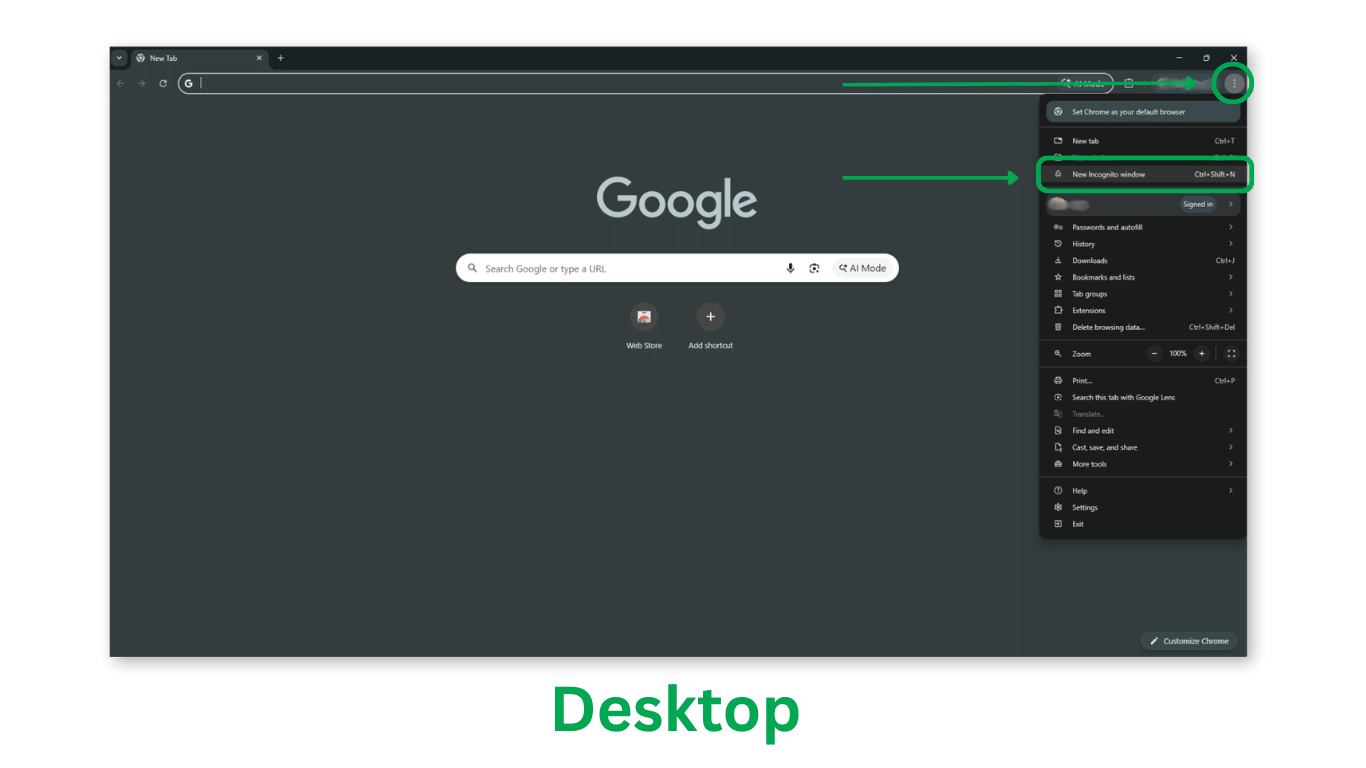
To navigate to Google Chrome incognito mode using a desktop:
- Click the three-dot menu in the top-right corner
- Select New Incognito Window
The keyboard shortcut is Ctrl+Shift+N on Windows or Cmd+Shift+N on Mac. The browser switches to a dark-themed window with a hat-and-glasses icon in the top-left corner confirming the session is active.
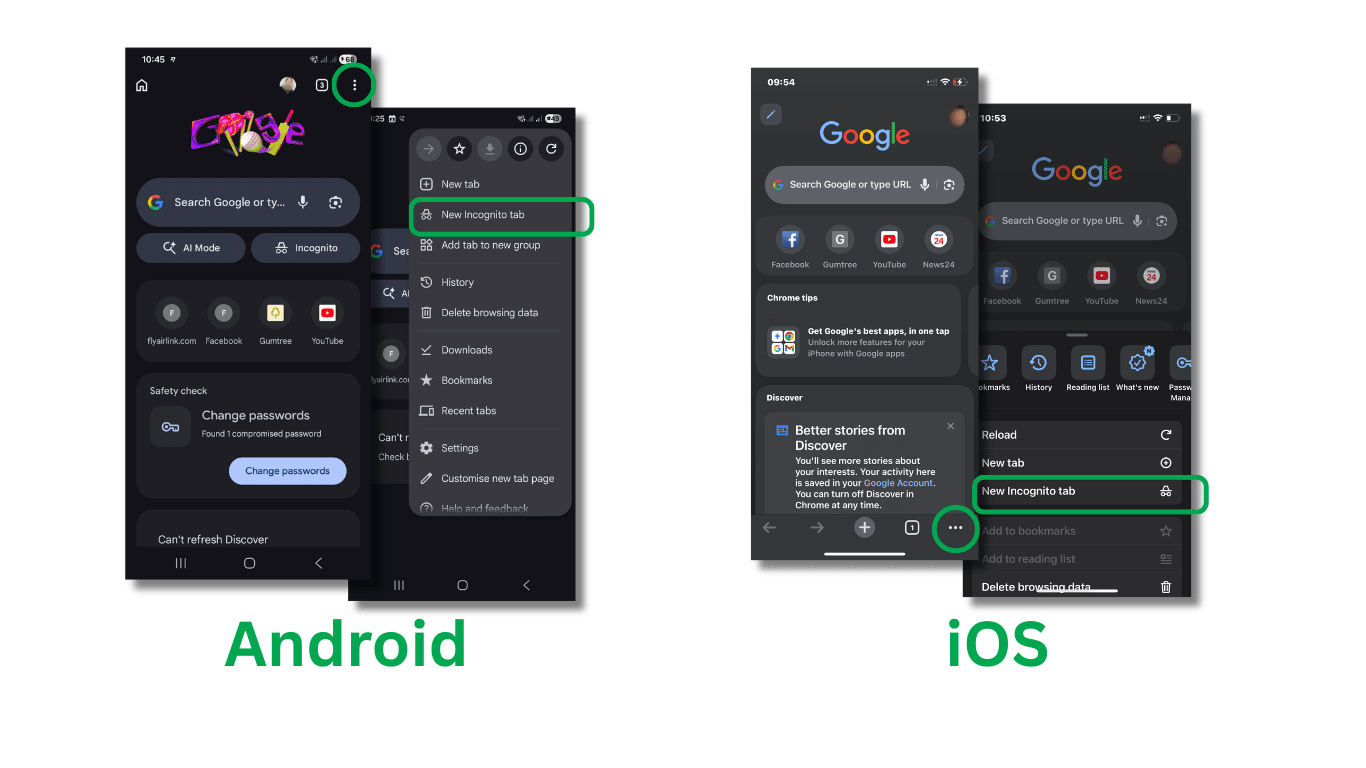
 To navigate to Google Chrome on Android:
- Tap the three-dot menu
- Select New Incognito Tab
To get to incognito mode on iOS:
- Tap the three-dot menu
- Tap New Incognito Tab
In both cases, an incognito tab counter appears in the toolbar showing how many incognito tabs are open. Tapping it takes you directly to your incognito tabs.
 Safari (Private Browsing)
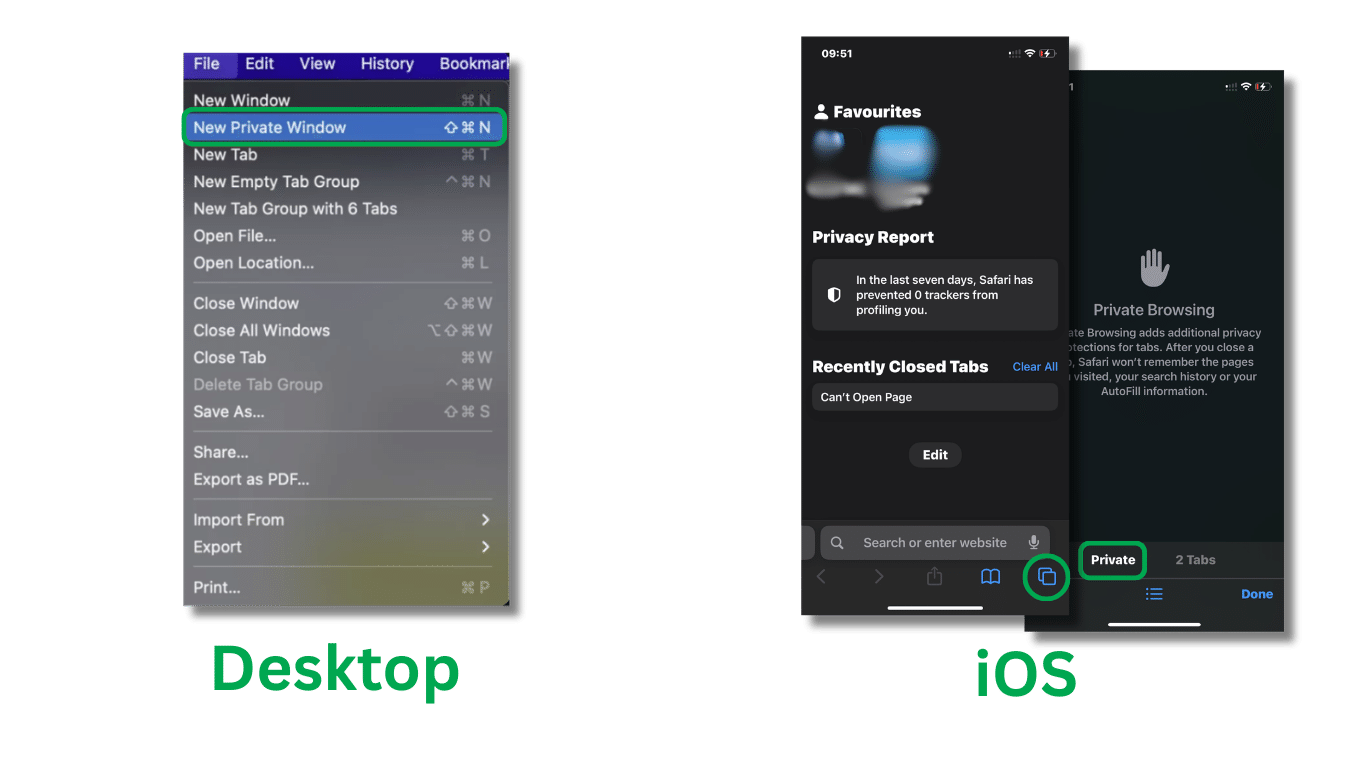
On Mac:
- Go to File in the menu bar
- Select New Private Window
The address bar background shifts to a darker grey and the browser label reads Private in the tab bar. There is no separate icon, the darker color of the address bar indicates that it is a private window on desktop.
On iPhone or iPad:
- Tap the tabs button (two overlapping squares) in the bottom-right corner.
- Tap the tab group label at the bottom of the screen, and select Private (the screen will darken immediately).
- Tap the plus icon to open a new private tab, the table label is marked as Private, and the New Tab page background is dark.
 Firefox (Private Window)
Firefox has the most distinctive private browser in terms of appearance with private windows using a purple mask icon in the toolbar.
On desktop:
- Open a private window via File
- Select New Private Window, (or press Ctrl+Shift+P on Windows or Cmd+Shift+P on Mac)
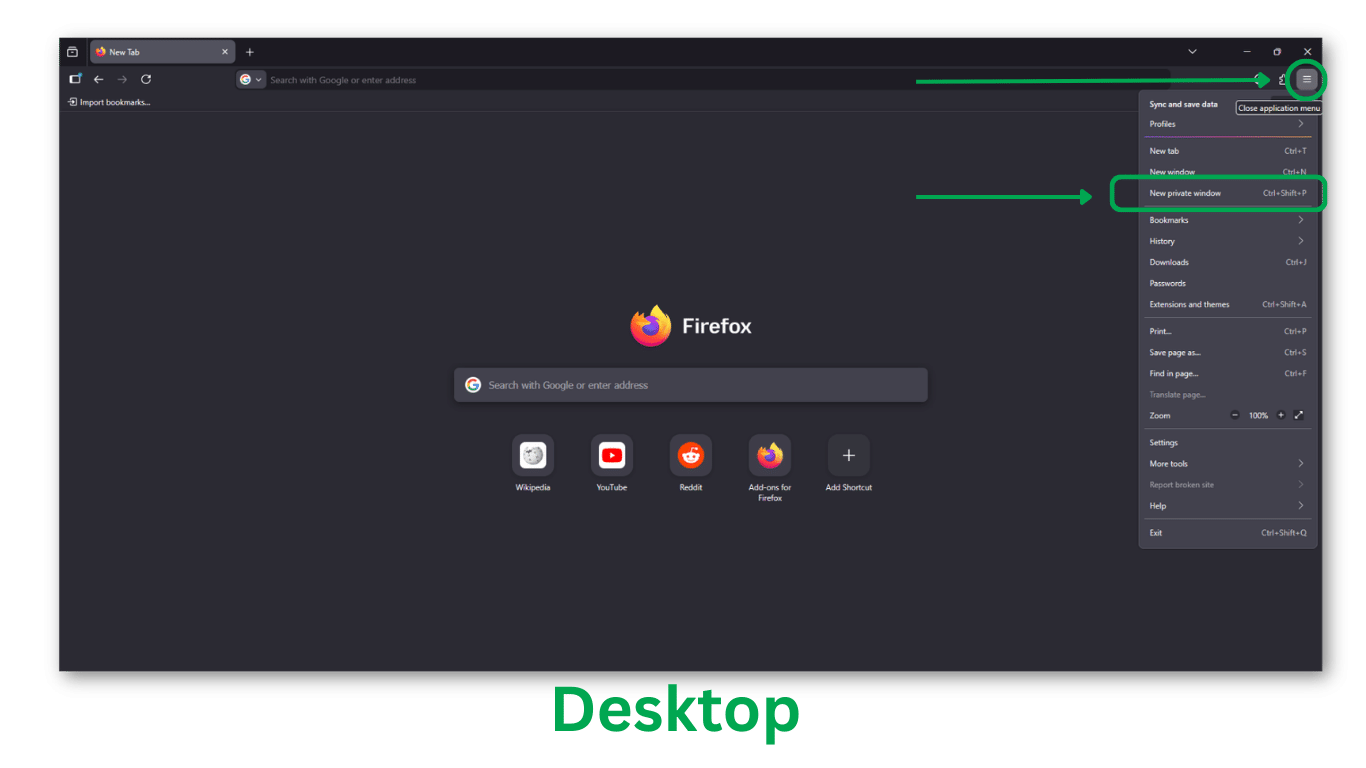 On Android:
- Tap the tabs icon (the number counter in the toolbar)
- Tap the mask icon in the top-right of the tab view to switch to private tabs.
On iOS:
- Tap the tabs button
- Tap the mask icon at the bottom of the tab view.
On both Android and iOS, the screen switches to a dark background with the mask icon active.
 Microsoft Edge (InPrivate)
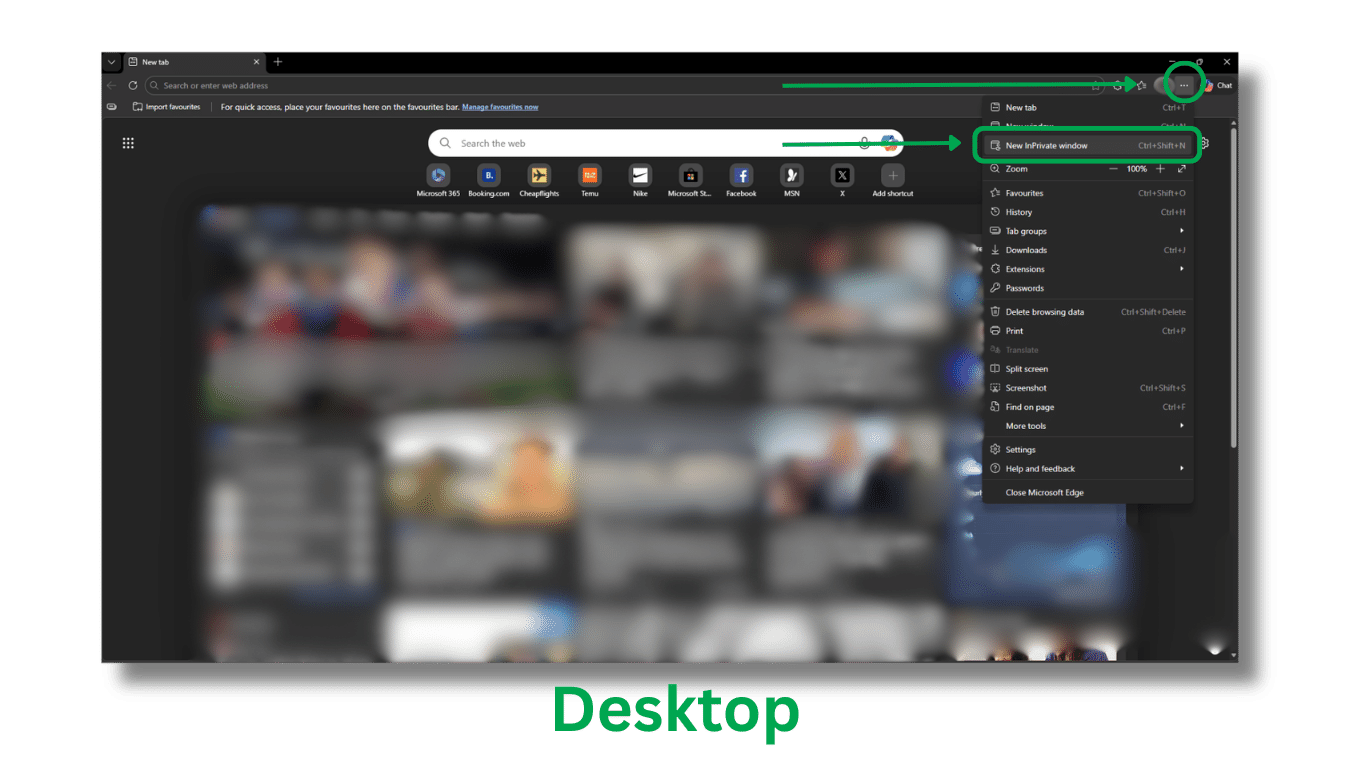
Edge calls its privacy mode InPrivate. It’s marked with a blue badge in the top-right corner.
On desktop:
- Open one via the three-dot menu
- Select New InPrivate Window, or use Ctrl+Shift+N.
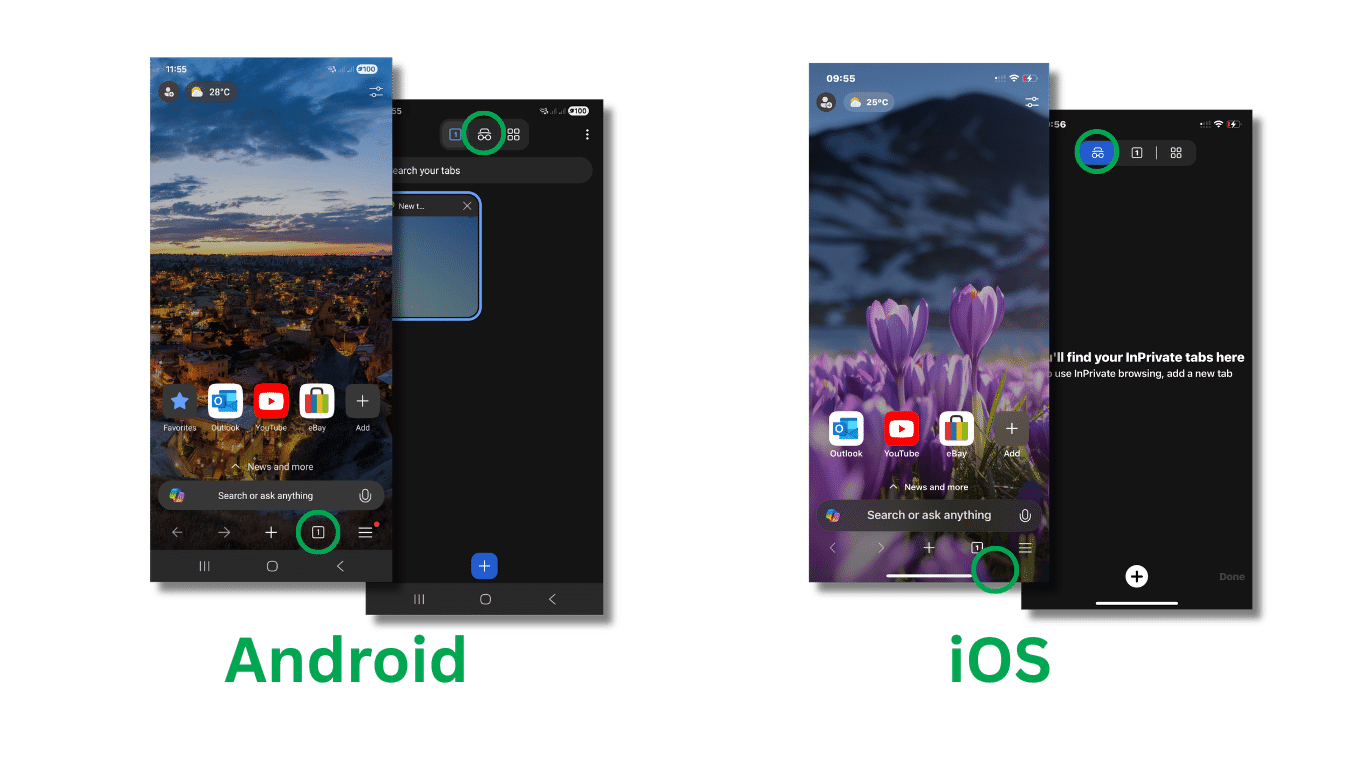
On Android or iOS:
- Tap the three-dot menu
- Select New InPrivate Tab.
Once the session is open, you will see a blue InPrivate badge at the top of the screen next to the tab counter.
Opera (Private Window)
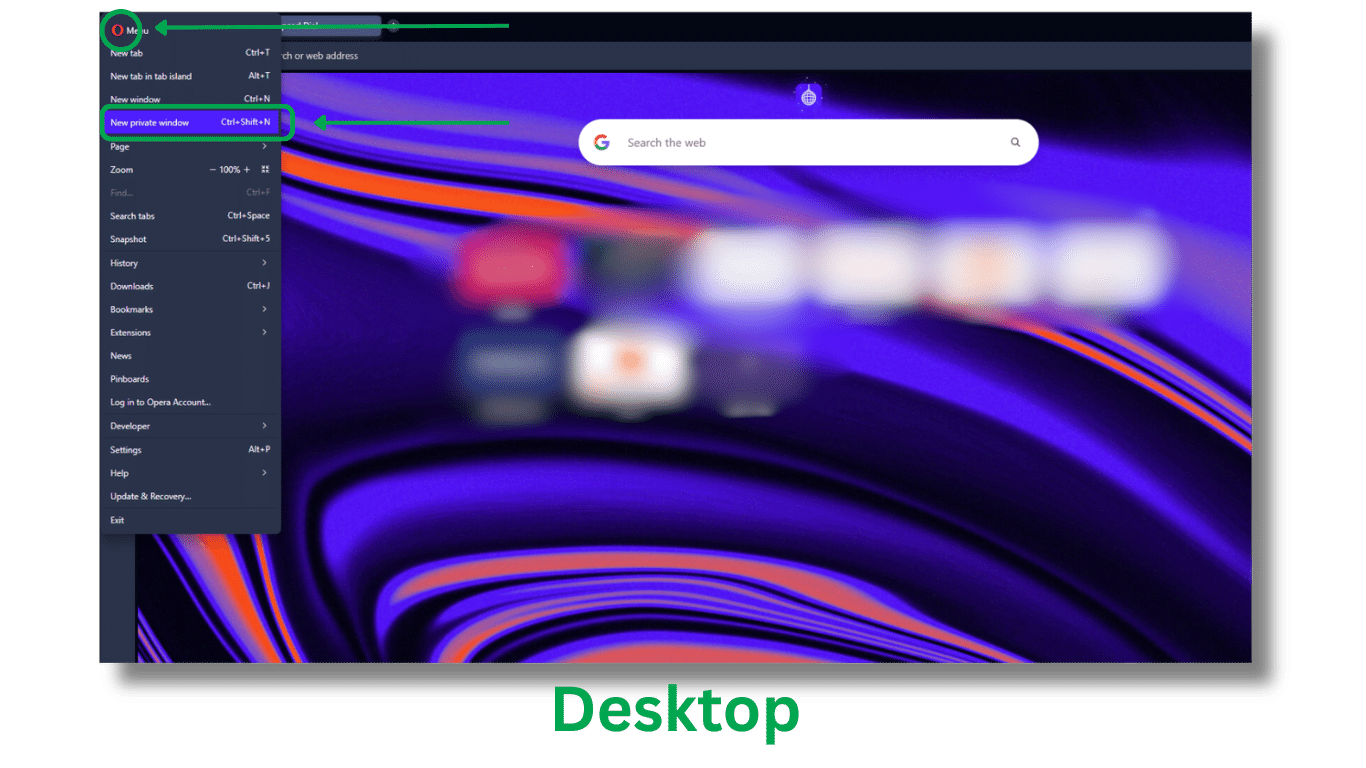
On desktop:
- Click the Opera logo in the top-left corner
- Select New Private Window (or press Ctrl+Shift+N)
You will see a mask icon in the toolbar to the right of the address bar.
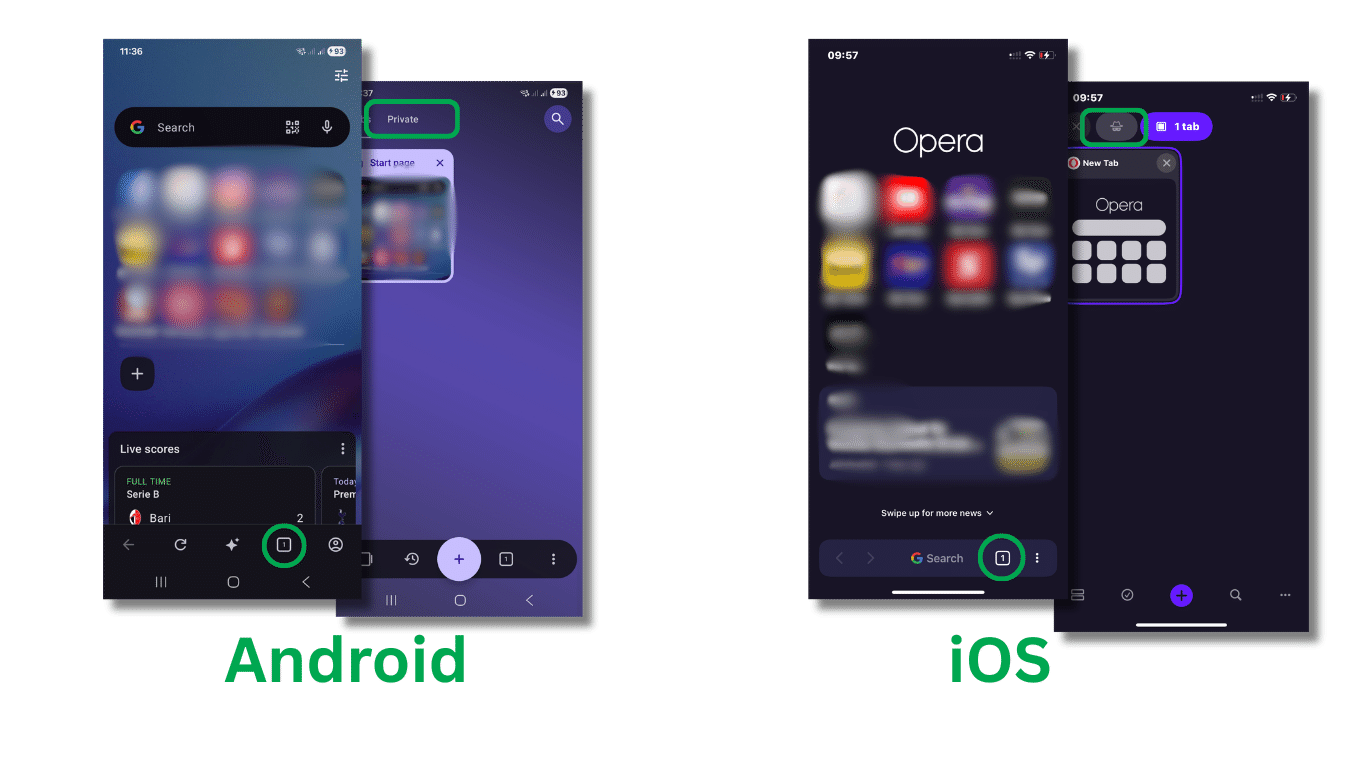
 On Android:
- Tap the tabs button at the bottom of the screen
- Tap the private tabs icon (a mask outline) to switch to private mode.
On iOS:
- Tap the tabs icon in the bottom toolbar
- Tap the mask icon.
Opera's private tab view has a dark background with a mask watermark.
 How do I turn off private browsing?
In every browser, you end a private session the same way: close every private window. When the last one closes, the browser deletes all temporary session data automatically. Closing a single tab is not enough, the session stays active as long as any private window remains open.
On mobile, this is easy to get wrong. A private session can keep running in the background while you switch to your regular tabs. You may think you have ended it when you close the browser app, but the session is still there until you go back and close the private tabs.
Google Chrome
On desktop, use the standard window controls to close the Incognito window, or close individual tabs with the X. Closing an incognito window ends the session for that window.
On Android or iOS, tap the tab counter in the toolbar to open the tab switcher. Tap the incognito icon to switch to your incognito tabs, then tap Close All Incognito Tabs. You can also swipe individual tabs closed here.
Safari
On Mac, go to File and select Close Private Window, or use the standard window controls. The window will close and takes all session data with it.
On iPhone or iPad, tap the tabs button and switch to the Private tab group. Swipe each tab closed or tap Edit and select Close All Private Tabs. If you switch back to your regular tab group, it doesn’t close your private tabs. They stay open until you close them from inside the Private group.
Firefox
On desktop, close the Private Window using the window controls. Firefox is the only major browser that has a confirmation message that shows when private session data has been cleared.
On Android or iOS, tap the tabs icon in the toolbar and switch to the private tab view using the mask icon. Tap Close All Private Tabs at the bottom of the screen. Firefox shows the same cleared-data confirmation on mobile.
Microsoft Edge
On desktop, close the InPrivate window using the standard window controls. You will notice the blue InPrivate badge in the top corner disappears once all InPrivate windows are closed.
On Android or iOS, tap the tab counter and switch to the InPrivate tab view, then tap Close All or swipe individual tabs closed.
Opera
On desktop, close the Private Window from the window controls or via the Opera menu. On Android or iOS, tap the tabs button and switch to the private tabs view using the mask icon. Then tap Close All at the bottom of the screen.
Is private browsing the same as using a VPN?
Private browsing is different from using a VPN as it manages what is saved on your device while a VPN encrypts your internet traffic and routes it through a server in another location.
With private browsing, your IP address is visible to every site you connect to, traffic is unencrypted at the network level and your ISP logs your connections as normal. With a VPN, your ISP sees that you are connected to a VPN, but not which websites you visit, and websites see the server's IP address rather than yours.
If you open a private window while connected to a VPN, you get both: local data clearance and network-level privacy at the same time. For most everyday privacy concerns, a VPN does more to protect your privacy at the network level.
Kaspersky VPN Secure Connection encrypts your connection on public and private networks and masks your IP address from the sites you visit. For comprehensive security with unlimited VPN, try Kaspersky Premium for free.
Related Articles:
- What are the main benefits of using Incognito Mode?
- Is private browsing enough for your online security?
- What is the importance of securing Personally Identifiable Information?
- How does Browser Isolation enhance your online security?
Related Products:
FAQs
Does incognito hide your IP address?
No, incognito mode doesn't hide your IP address. Every site you visit, your internet service provider, and any network your device is connected to can all see your real IP. To mask it, you need a VPN or the TOR browser.
Can police see incognito history?
Yes, police can access your browsing activity in most jurisdictions. Private browsing doesn't delete your activity from your ISP's logs, which law enforcement can request through legal process. On a managed work or school network, the administrator retains connection logs regardless of whether you used a private window.
Is private browsing safe for banking?
Private browsing is safe for banking, but it doesn't make banking safer. It won't encrypt your connection, block phishing, or stop malware. It clears your session when you close the tab, so others can't see your login history. Use a trusted network and verify the site address before entering credentials.
Why do ads still follow me in private mode?
Privacy mode doesn't block advertisers from tracking you. They can still see your IP address and browser fingerprint (including your screen resolution, installed fonts, device settings, and time zone). If you log into Google or a social media account during a private session, your activity is connected to your profile.
What is incognito mode, and what is private browsing? In this overview, we explore what incognito mode does and does not do, how to browse privately, and how using a secure browser protects your online privacy more comprehensively than private mode.